There are five realistic ways to get from a recorded lecture to notes: type during class, transcribe it and organize the text yourself, paste the transcript into ChatGPT, use your school's own lecture capture system, or use a tool that records the class and keeps it next to the course.
Before any of them, one rough calculation that decides which is worth your time.
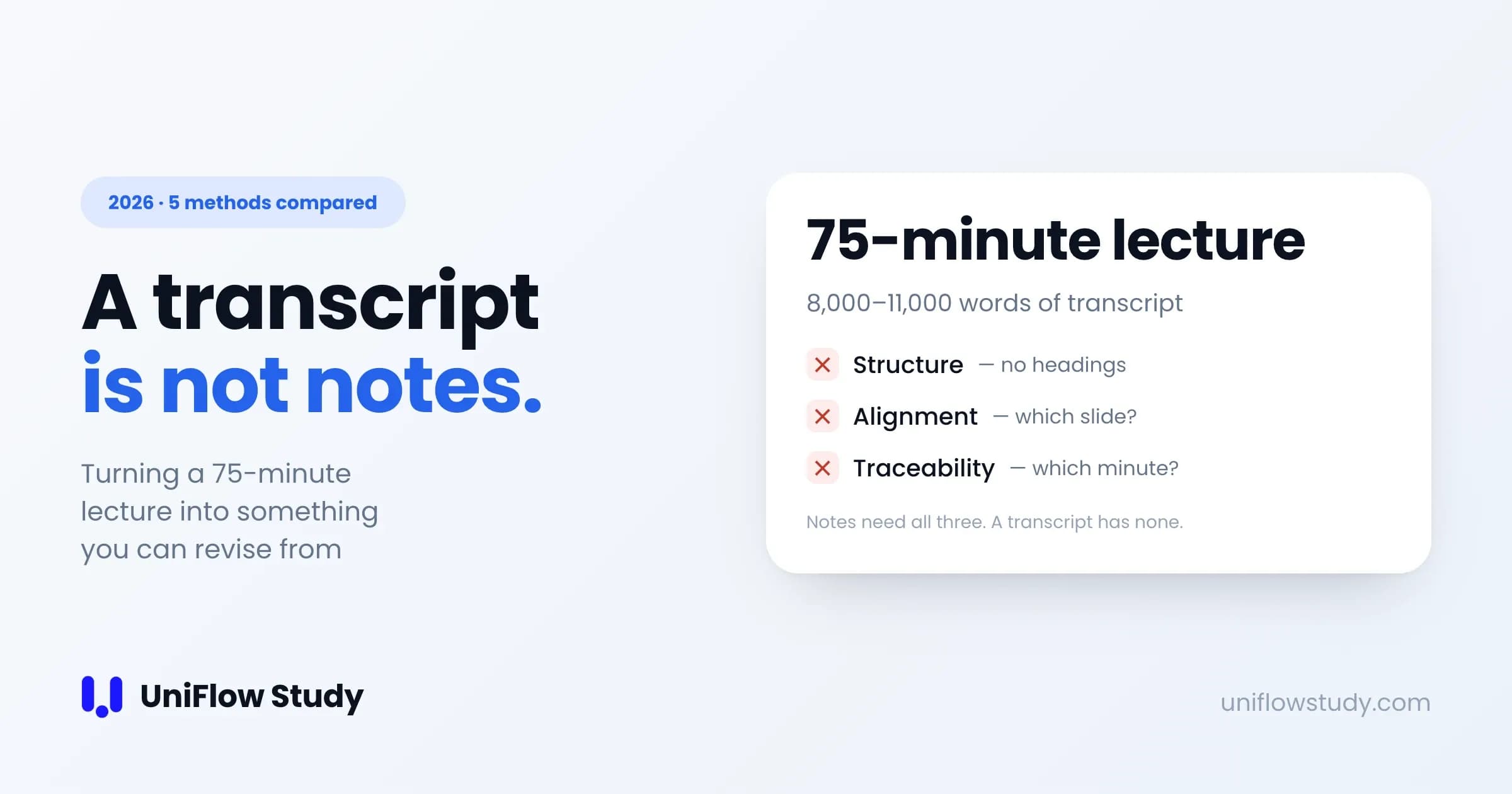
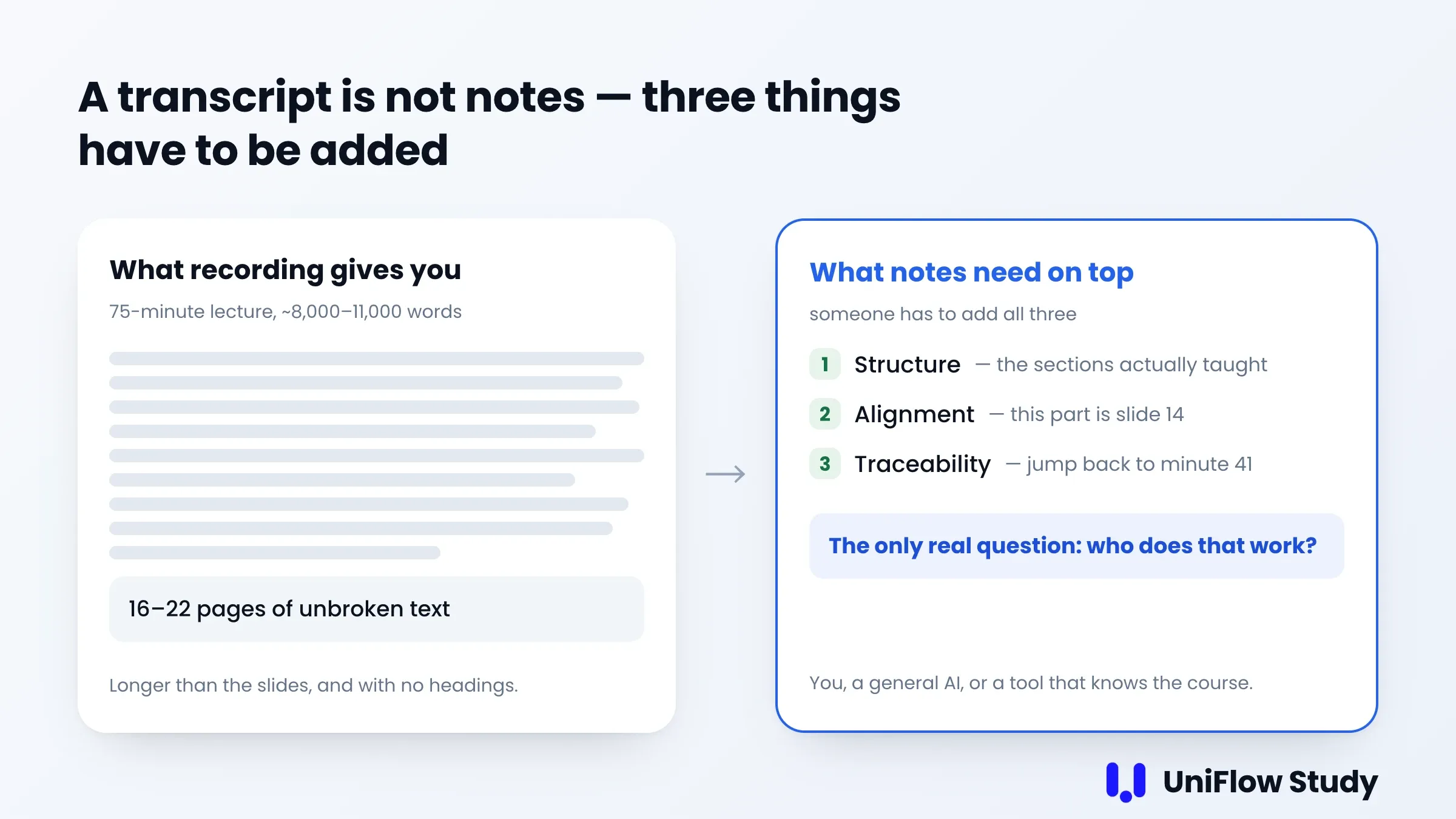
A 75-minute lecture is somewhere around 8,000 to 11,000 words of transcript. Speaking pace during a lecture usually falls between 100 and 150 words a minute, so 75 minutes lands in that range — call it 16 to 22 pages of single-spaced text. It's an estimate, and your professor may be faster or slower, but the order of magnitude is the point: having that file is not the same as having notes. In some ways it's worse than the slides, because it's longer and has no headings.
Notes need three things a raw transcript doesn't have:
- Structure — broken into the sections the professor actually taught, in order.
- Alignment — this part goes with slide 14, this part is the exam scope in the syllabus.
- Traceability — the night before the exam, you can jump back to the 41st minute and hear the sentence again.
Every method below is really a different answer to who does that work: you, a general-purpose AI, or a tool that already knows what course you're in.
Quick answer
- Your school already records the lecture: check that first. It's free and you may not know it's there. Details in method 4.
- You need one lecture transcribed this week and nothing else: a general transcription tool. Watch the free-tier limits — Otter's free plan caps a single recording at 30 minutes, which doesn't fit a normal lecture.
- You have transcripts already and want them summarized: paste into ChatGPT. There's a prompt below that works. Fine for one lecture, painful as a routine.
- You can't follow the lecture in real time, or you're studying in English or Chinese as a second language: method 5. Live transcription with translation solves the problem during class, not the night before the exam.
The comparison
Prices and limits checked September 14, 2026.
| Method | Set up before class | What you get | Lines up with slides & syllabus? | Your time after class | Cost |
|---|---|---|---|---|---|
| 1. Type or handwrite in class | Nothing | Real notes, missing whatever you couldn't keep up with | You did it, so yes | 0–20 min tidy-up | Free |
| 2. Record + transcription tool | Start a recorder | A transcript | No | 30–60 min | Free tier is tight; Otter Pro $16.99/mo, $8.33/mo annual |
| 3. Transcript → ChatGPT | Have a transcript | A summary, quality varies | Only if you paste the slides too | 10–20 min per lecture | ChatGPT free or $20/mo |
| 4. Your school's lecture capture | Nothing | Transcript or captions, if enabled | Sits with the course, but it's still a transcript | 20–40 min | Free (your tuition) |
| 5. Course-aware recording tool | Start the session, pick the course | Transcript plus notes tied to the course | Yes | About 5 min | Free plan; paid from $16/mo; transcription packs from $5 / 120 min |
← Swipe to see the full table →
Two caveats on that table. The time estimates are ours and they're rough — yours will depend on how much you rewrite. And the row in bold is our own product, so weigh it accordingly.
Method 1: Type or handwrite during class
Still the best method for retention, and nothing below replaces it. Writing forces you to decide what matters while the lecture is happening, which is most of the learning.
It fails in three specific situations: the professor talks faster than you write, the content is dense enough that any time spent writing means missing the next point, or you're following the lecture in a second language and your attention is already fully spent on listening. If you're in one of those, you're not being lazy by recording — you're moving the note-making to a moment when you have the capacity for it.
Best combination: record and write. Write sparse notes, mark the moments you lost the thread, then use the recording to fill only those gaps.
Method 2: Record, then transcribe with a general tool
Start a recorder, upload the audio to a transcription service, get text back.
This works, and transcription quality from the mainstream services is good. The problem is what you have afterwards: several thousand words with no structure, which you now have to read and reorganize. Budget 30 to 60 minutes per lecture, honestly.
Check the free-tier limits before you rely on this for a semester. Otter's Basic plan, per its help center, gives you 300 transcription minutes a month, capped at 30 minutes per conversation, and only your 25 most recent conversations stay visible. A 75-minute lecture doesn't fit in one free session. Otter Pro is $16.99 a month, or $8.33 a month billed annually, and raises the per-meeting cap to 90 minutes. On student pricing: Otter's pricing page lists a 20% discount for .edu addresses, and a company post dated August 26, 2026 announced 50% off an annual Pro plan for students, described there as replacing the 20% offer and running through the end of September 2026. If you're reading this later, that promotion has expired — check the pricing page.
There's also a category built specifically for this: Genio Notes, called Glean until it rebranded in June 2025. It records the lecture, lets you flag moments as they happen, and transcribes afterwards. Two things worth knowing before you buy. Genio's transcription documentation says: "At present, Genio Notes only supports English transcriptions, but our Live Captions add-on offers 30+ languages" — and its individual pricing page states that "Live Captions is not available on individual plans." So the multilingual capability is real, and it's the part a student buying for themselves can't get. Individual plans start at $14.49 a month with a 30-day trial, and Genio's Canvas integration is part of institution-wide licensing, so if your university hasn't bought it, you don't get the LMS integration either.
Method 3: Paste the transcript into ChatGPT
The obvious move, and it does work. Here's a prompt that produces something closer to notes than to a summary:
You are helping me revise for a university course. Below is the transcript of one
lecture. Turn it into study notes:

1. Split it into the sections the lecturer actually taught, in order, with a heading
   for each.
2. Under each heading: the key claim in one sentence, then the supporting detail as
   bullets.
3. Pull out separately: anything stated as exam-relevant, any definition, any worked
   example, and any question the lecturer asked the room.
4. At the end, list the points where the transcript is unclear or garbled, instead of
   guessing what was meant.

Do not add anything that isn't in the transcript.

TRANSCRIPT:
[paste here]
Two practical notes. If the transcript is too long to paste at once, split it by time — two or three chunks with an overlapping paragraph at each seam — and ask for the sections of each chunk, then ask for a merged outline at the end. And paste the lecture slides in the same conversation if you want the notes to line up with them; nothing in the transcript says which slide was on screen.
The bigger limitation isn't the prompt. It's that you do this every time, for every lecture, with no memory of the course between chats. And a general model will confidently smooth over the parts where the audio was bad or the professor misspoke — step 4 above exists to push back on that, but it only helps so much. That's the cost of losing traceability.
It's a reasonable way to handle one lecture you missed. It's a tiring way to run a semester. If you'd rather not paste anything, we wrote a separate piece on the five ways to connect Canvas to ChatGPT.
Method 4: Use what your school already has
Do this before you pay for anything.
Panopto and Echo360 are two of the most common lecture capture platforms in US higher education, and both run speech recognition. Kaltura, YuJa, Canvas Studio and plain Zoom cloud recordings are widespread too, and the check at the end of this section works on all of them. The catch is the same everywhere: the transcript often exists without being switched on for you.
Panopto automatically processes sessions for machine-generated captions — its documentation states this for sessions recorded after December 17, 2016 — but someone has to select "import automatic captions" in the editor before you see them. Viewer-side transcript download exists; Panopto's community forum records it shipping as a site-level setting, so whether you have it depends on your school.
Echo360 treats automatic speech recognition as an institution-level feature an administrator turns on, after which instructors can toggle it per course section. When it's on, a transcript button appears in the player, and students can view the transcript alongside the video and download it as TXT or VTT. One quirk worth knowing: for interactive media, students can't download the transcript until they've answered all the embedded polls.
How to check in two minutes: open a recorded lecture in your course and look for a Transcript or Captions button in the player. If it's there, you already have the text — download it and go to method 3 or 5. If it isn't, it's worth one email to your professor, because on both platforms turning it on is a setting, not a purchase.
Method 5: A tool that records the class and knows what course it's in
This is the category we build in, so read the rest with that in mind.
The difference from method 2 isn't the transcription — speech recognition is broadly comparable across serious tools. The difference is what the transcript sits next to. When the recording is attached to a course, notes can be built against the syllabus and the slides instead of against a wall of text, and "what's on the midterm" can be answered from the exam scope in the syllabus, the sentence your professor said in week 6, and the March announcement, at the same time.
Here's how it works in UniFlow Study specifically:
- Before class, start a Live Transcription session and pick the course. That one choice is what makes everything afterwards course-aware.
- During class, the transcript appears in real time, timestamped. If English isn't your first language, bilingual translation runs alongside the original so you can catch a sentence you missed without falling behind on the next one. English and Chinese are supported today.
- After class, the transcript is indexed next to everything Canvas has for that course — syllabus, assignments, announcements, files. Ask a question and the answer cites its sources, including the lecture and the timestamp.
- Before the exam, ask for the exam scope and get an answer assembled from the syllabus and from what was actually said out loud, with a timestamp to jump back to.
On cost: the free plan includes 30 AI conversations a month and one course. Transcription is sold as time packs from $5 for 120 minutes — about one and a half 75-minute lectures — and paid plans start at $16 a month, with the $25 Pro plan including 10 hours of transcription a month. It's a Mac and Windows desktop app that connects to Canvas through a built-in browser using your own login, so there's no API token and no extension to install. What it reads from Canvas.
Before you record anything: ask
This part isn't optional, and it takes one message.
Universities publish their own rules and they differ. Penn State's policy AD40 covers recording of classroom activities; Northwestern's provost publishes a policy on recording classes. Many institutions require the instructor's permission first, most prohibit sharing or republishing recordings regardless of permission, and recording rules can also differ by state. If you have a documented accommodation, recording may already be covered — check with your disability services office rather than guessing. Your own university's policy page is the only reliable source; the two above are just examples of what one looks like.
Something like this is usually enough:
Two habits on top of that: don't share lecture recordings or transcripts outside the class, and don't post them anywhere public. That's where the real trouble in this area comes from, not from the recording itself.
FAQ
QAm I allowed to record my lectures?
It depends on your university, and often on your professor. Many institutions require the instructor's permission first — Penn State and Northwestern both publish written policies, and most schools have one — and nearly all prohibit sharing or republishing recordings whether or not you had permission to make them. If you have a documented accommodation, recording may already be approved through your disability services office. Ask once, in writing, and keep the reply.
QCan Otter.ai turn a lecture into study notes?
It can transcribe one and produce a summary. It can't align the transcript to your slides or your syllabus, because it has no access to them. Check the free-tier limits first: Otter's Basic plan caps a single recording at 30 minutes, which is shorter than most lectures.
QHow accurate is transcription with a strong accent or technical vocabulary?
Accents are handled reasonably well by current models. Specialized vocabulary is the real weakness — course-specific terms, names and notation are where errors cluster, and they're exactly the words you need. That's an argument for keeping the audio, not just the text: when a term looks wrong, you want to jump to that timestamp and hear it.
QWhat if my school already posts Echo360 or Panopto captions?
Then use them. Open a recorded lecture and look for a Transcript or Captions button. On Echo360 you can usually view and download the transcript as TXT or VTT; on Panopto, transcript download depends on a setting your school controls. Either way you have the text for free, and the remaining work is turning it into notes.
QHow long does this actually take after class?
Roughly: 30 to 60 minutes if you're reorganizing a raw transcript yourself, 10 to 20 minutes per lecture if you're pasting it into a general AI tool, and about 5 minutes if the recording was already attached to the course when you made it. The variable isn't transcription speed — it's how much structure you have to add by hand afterwards.
Sources
- Otter.ai pricing
- Otter.ai help center: Basic free plan limits
- Otter.ai: student and teacher discount program
- Otter.ai blog, August 26, 2026: 50% off annual Pro for students
- Genio: "Goodbye Glean, hello Genio"
- Genio Notes: transcription
- Genio pricing for individuals
- Genio for institutions (LMS integration)
- Panopto: ASR-generated captions
- Panopto Community: viewer transcript download
- EchoVideo: automatic speech recognition service
- EchoVideo: viewing media transcripts
- EchoVideo: exporting a transcript
- Penn State policy AD40: Recording of Classroom Activities and Note-Taking Services
- Northwestern: Policy on Recording Classes
- UniFlow Study: Live Transcription
- UniFlow Study: what Canvas Sync reads
Related: Best Canvas Chrome extensions for students (2026) · AI study tools for Canvas: 7 compared
Changelog: 2026-09-14 first published.